
Scheduled certification cycles cover most reviews. Sometimes you need one now: an auditor asks for fresh evidence, an app had a security incident, or a team was reorganized and you want the owner to look again before the next cycle. An ad hoc certification starts a review for one app on demand.
Start a certification for one app
- Go to Access Certification > App Certification.
- Find the app and click Request Certification.
- Check the readiness note at the top. It confirms the app has an owner and active users. Apps with no owner cannot be certified; assign one first.
- Choose a Request type (see below).
- Optionally, choose a delegated certifier.
- Click Apply Request.
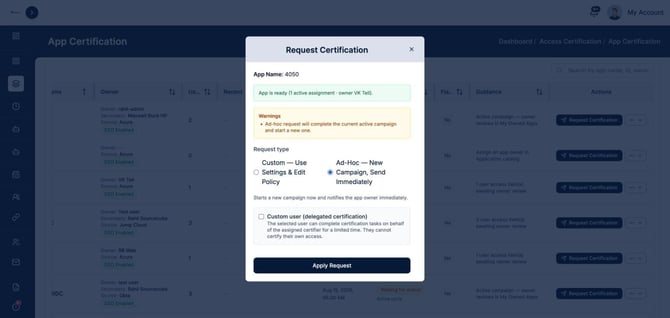
Choose a request type
| Request type | What it does | Use it when |
|---|---|---|
| Custom (use settings and policy) | Uses your tenant settings and the app's own policy. If a campaign is already running for the app, it reuses that campaign and adds any new assignments | You want new users picked up without restarting the review |
| Ad-Hoc (new campaign, send immediately) | Completes the current campaign and starts a new one. The app owner is notified right away | You need a clean, dated review now, for example for an audit |
AppGovern shows a warning before you apply, so you know whether you are reusing or replacing the current campaign.
Hand the review to someone else
Tick Custom user (delegated certification) to let another person complete the review on behalf of the assigned certifier. Pick the person and how long the delegation lasts: 2 days, 1 week, 30 days, or a custom period. A delegate can never certify their own access.
For planned absences, out-of-office delegation is usually a better fit. See Delegating Reviews While You Are Out of Office.
Set a policy for one app
Some apps need tighter timing than the rest. Open the ... menu on the app's row and click Edit Policy to override the tenant defaults for that app:
- Default Period (days): how long the owner has to finish.
- Reminder After (days) and Max Reminders: how often to nudge them.
- Escalation After (days): when unanswered items go up the chain.
- Certification Notification Email: an optional address, such as a compliance mailbox, that gets a copy of the request.
Custom requests for that app use this policy.
Other actions on the app's row
The ... menu also has:
- Notify: send the owner a reminder.
- View History: see every past cycle for the app, which is your audit trail.
- Edit Last Request and Cancel Last Request: change or withdraw a request you just made.
Let users ask for a review
End users can ask for their own access to be certified again, if you allow it in Settings > Access Certification Settings. Their requests appear under Access Certification > Re-certification Requests. If admin approval is required, approve a request to start a new cycle, or reject it with a reason.
Related articles
- Running Your First Access Certification Campaign
- Automatic Certifications and Bypass Lists