
AppGovern handles two kinds of requests. Access requests are for time-limited access to an app someone already governs, handled in Access Hub. App requests are for bringing a new, unlisted app under governance. This article covers both, with the emphasis on access requests since they are the everyday flow.
Access requests (just-in-time access)
Access Hub grants access for a fixed duration against a predefined access profile, then removes it when the clock runs out. Nobody keeps standing access they only needed for an afternoon.
Access profiles
An access profile is a named bundle of permissions on one app, for example "Dev 123" on HubSpot. Admins define profiles under Access Hub > Access Profiles, choosing the app, the groups or roles the profile grants, the maximum duration, and who approves. Requests are always made against a profile, never against raw permissions.
Submitting a request
- Go to Access Hub > Access Requests and click New Request.
- Application: pick the app.
- Access Profile: pick a profile defined for that app.
- Target User: leave empty to request for yourself, or pick someone else. The target must have a valid email, which is used for the directory grant.
- Duration (minutes): how long the access should last. The clock starts when the grant succeeds. The profile's maximum applies.
- Reason: why the access is needed. Required, and shown to approvers.
- Click Submit Request.
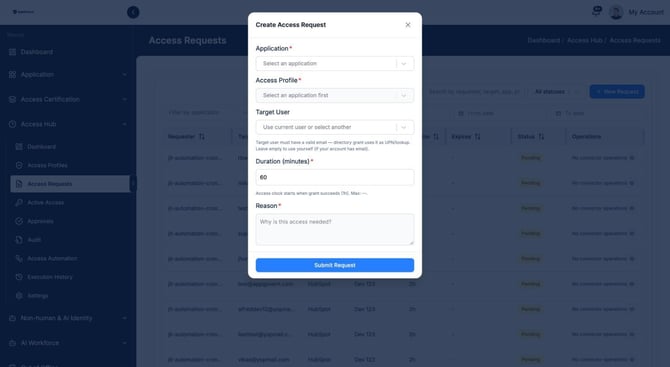
The request appears in the Access Requests list with status Pending.
Approving a request
Approvers see their queue under Access Hub > Approvals.
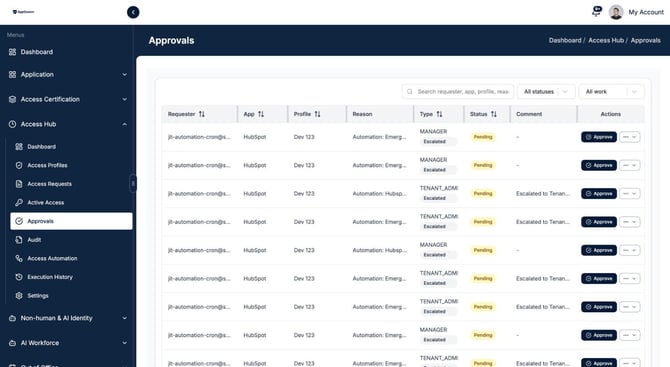
Each row shows the requester, app, profile, reason, the approval type (Manager or Tenant Admin), status, and comments. Click Approve or use the menu for Reject (reason required) or Delegate.
Approval routing:
- First approval goes to the requester's manager, or to the app's Business Owner depending on the profile.
- If the approver does not respond within the escalation window, the item is marked Escalated and routed to a tenant admin.
- Delegated approvals are logged and the delegate receives the notification.
After approval
- AppGovern performs the grant through the app's connector. If the app has no connector, the request shows "No connector operations" and the grant must be done manually by the app owner.
- The request moves to Active Access with an expiry time.
- When the duration ends, access is revoked automatically and the user is notified.
- Admins can revoke early from Active Access.
Break-glass access
For emergencies, a profile can allow break-glass access that is granted immediately and reviewed after the fact. Break-glass grants trigger a security alert email to admins and are flagged in Audit.
Audit and automation
- Access Hub > Audit records every request, approval, grant, and revocation.
- Access Hub > Access Automation and Execution History let you define rules (for example, auto-approve a low-risk profile for a given team) and see what ran.
Email notifications
Each step sends an email: approval required, escalated approval, approved, rejected, granted, revoked, cancelled, delegated, and break-glass triggered. Edit the wording under Mail Template; each has its own type.
App requests (new apps)
When an employee needs an app that is not in the directory, the request goes through Application > App Requests.
- Users submit a report through the self-service portal, or an admin logs it for them. It appears as User Reported in App Directory and in App Requests.
- An admin reviews it, assigns a Business Owner, and either approves it into the directory or rejects it with a note.
- Approved apps go through onboarding (owner, SSO setup if applicable, connector) and then join the normal certification cycle.
Common questions
Can I request access for a contractor who is not in the IdP? The target user needs a valid email that the connector can match. Create a local user first if they are not synced.
Why is my request stuck in Pending? The approver has not acted and the escalation window has not elapsed. Check Approvals to see whose queue it is in.
Can access be extended? Submit a new request before the current one expires. Extensions are a new approval, so the reason is recorded again.