
AppGovern sends email at most points in the governance process: ownership assignments, certification requests and reminders, flags, access request approvals, and alerts. Every one of those emails has a template you can edit. This article explains what gets sent, how to change the wording, and how to quiet notifications you do not want.
Where templates live
Go to Mail Template in the sidebar. The list shows each template's subject and type. Click Edit to change one, Delete to remove it, or Create Mail Template to add one for a type that has no custom template yet.
If a type has no template, AppGovern uses its built-in default. Deleting a custom template does not stop the email; it reverts to the default.
Template types
Each email event has a fixed type. Choose the exact type when creating or editing, or the email will not use your template. The types are grouped below.
Ownership and apps
- App Owner notify notification
- Connector owner notify (App Owner)
- I'm Not the Owner, Reassign
- SSO Onboarding App
- Report Missing App Request
Access certification
- App owner request, and App owner request (CC)
- Bot owner request
- Manager request
- Manager self-cert reminder
- Self certification request
- User certification request submitted, review required, cancelled, and updated
- Access certified
- Item on hold
- Flagged access
- Flag justified, Flag escalated, Flag closed
- Justification reminder
- Access revoked
- Access change approval required, approved, and rejected
JIT access (Access Hub)
- Approval required
- Escalated approval
- Request approved, rejected, cancelled
- Access granted, revoked
- Approval delegated
- Break-glass triggered
Non-human identity and AI
- NHI manual notification
- AI Submission, Review Requested
- AI Submission, Decision
Peer Intelligence
- Finding
- Execution failed
Reports and alerts
- Reporting, Scheduled Report
- Alert, Security Alert
- Alert, Escalated Alert
Account
- Users notify notification
- Users Login with OTP
- Other
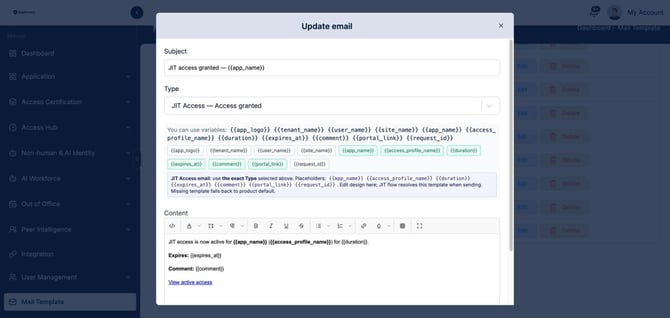
Editing a template
- Click Edit on the template, or Create Mail Template.
- Subject: the email subject line. Variables are allowed.
- Type: pick the event this template is for.
- Content: the body, in a rich text editor with headings, lists, links, tables, and a source-code view.
- Click Save.
Variables
Each type exposes a set of variables shown above the editor. Click a variable chip to insert it, or type it as . Common ones:
,,: branding: the recipient: the application the email is about: a link into AppGovern to act on the item,: request details,,: JIT access details,: AI submission details: Peer Intelligence findings
Variables that do not apply to the selected type are listed but will render empty.
Branding
Upload your logo under Settings > Tenant Settings > Upload Custom Logo. The variable then shows it in every template that includes it. Set the Notification Email on the same page to control the sender address shown to recipients.
Delivery: SMTP and channels
- Settings > SMTP: configure your own mail server so emails come from your domain rather than AppGovern's default sender.
- Settings > Notification Channels: add Slack or Teams channels for alerts alongside email.
Turning notifications down
There is no single master switch, because each module controls its own events:
- Certification reminders: under Settings > Access Certification Settings, adjust Notify before due, Reminder after, and Max reminders. Setting Max reminders to 0 stops follow-ups.
- NHI notifications: under Non-human & AI Identity > Settings > Notifications, toggle each event.
- Alerts: under Insights & Compliance > Alert Policy Management, edit or disable policies.
- Peer Intelligence: disable automations that generate findings.
A practical approach before your first campaign: set reminders to a modest cadence (for example, notify 3 days before due, remind every 3 days, max 2 reminders), review the certification templates so the wording matches your tone, and send a test to yourself by running a small campaign on one app.
Common questions
Can I send from my own domain? Yes, configure SMTP under Settings.
Can I disable a specific email entirely? Only where the module offers a toggle (NHI, alerts, automations). Certification emails are controlled by the reminder schedule rather than switched off, since reviewers need them to act.
Do changes apply to emails already queued? No. The template is resolved when the email is generated, so changes apply to the next send.