
AppGovern builds your application inventory from several sources at once. This article explains where apps come from, how they are classified, and what to do with apps that need review.
Discovery sources
AppGovern finds applications through five routes:
| Source | What it finds | Where it shows up |
|---|---|---|
| Identity provider sync | Every app registered in Okta, Entra, Google Workspace, JumpCloud, or Auth0, plus the users assigned to each | App Directory, with the IdP as the Source |
| OAuth scan | Third-party apps that users have authorized with their work account (for example, a tool granted access to Google Drive or Microsoft 365) | Shadow Apps tab, Detected From: OAuth Scan |
| Running app detection | Software observed running on managed endpoints | Shadow Apps tab, Detected From: running_app |
| User reported | Apps that employees submit themselves through the request flow | User Reported tab |
| Manual add | Apps you enter directly with Add New App | App Directory, Source: Custom App |
Each app record keeps its source so you can see how AppGovern learned about it.
What a discovered app looks like
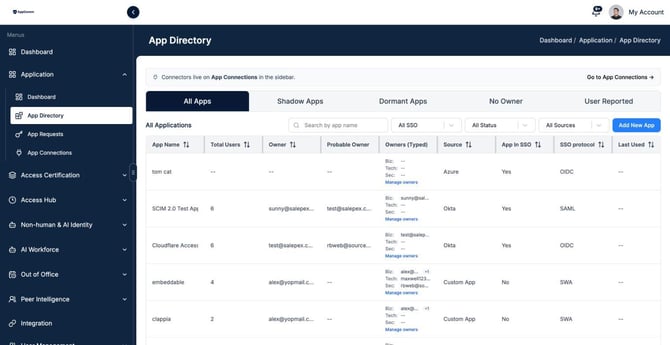
Go to Application > App Directory. Every app row shows:
- App Name and Total Users
- Owner, Probable Owner (AppGovern's suggestion), and Owners (Typed) for Business, Technical, and Security owners
- Source: which discovery route found it
- App In SSO and SSO protocol: whether it sits behind your IdP, and if so whether it uses SAML, OIDC, SWA, or another method
- Last Used and Status
The five tabs
The tabs across the top of App Directory split the inventory by governance state:
- All Apps: the full inventory.
- Shadow Apps: apps found through OAuth scans or endpoint detection that are not managed through your IdP. These are the apps nobody approved.
- Dormant Apps: apps with no sign-in activity in the dormancy window. Candidates for removal or license recovery.
- No Owner: apps with no Business Owner assigned. Nothing can be certified until someone owns it.
- User Reported: apps employees have submitted that are waiting for review.
Start your review with Shadow Apps and No Owner. Those two tabs contain most of the risk.
Reviewing a shadow app
Open the Shadow Apps tab. Each row shows the app, where it was detected, which users were seen using it, and a Pending status.
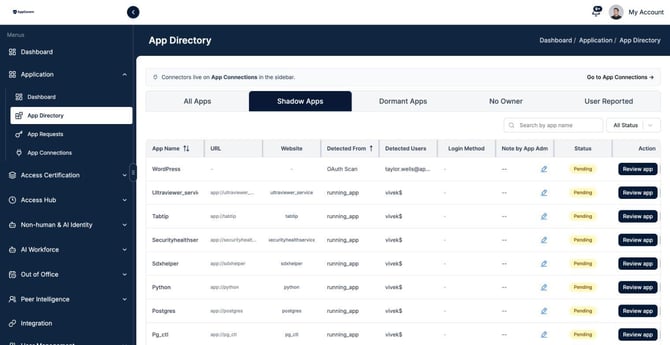
Click Review app to open the detail dialog. You have four choices:
- Resolve: accept the app into your inventory. It moves to All Apps and can be assigned an owner.
- Resolve Manual: accept the app and fill in details yourself (name, owner, category) before it enters the inventory.
- Reject: mark the app as not approved. It stays on record so you can see if usage continues.
- Delete: remove the detection entirely. Use this for false positives such as system utilities.
Admins can also add a note to a shadow app using the pencil icon in the Note by App Admin column, which is useful for recording why an app was rejected or who is looking into it.
Adding an app manually
If an app is not in your IdP and has not been detected, add it yourself. On App Directory, click Add New App.
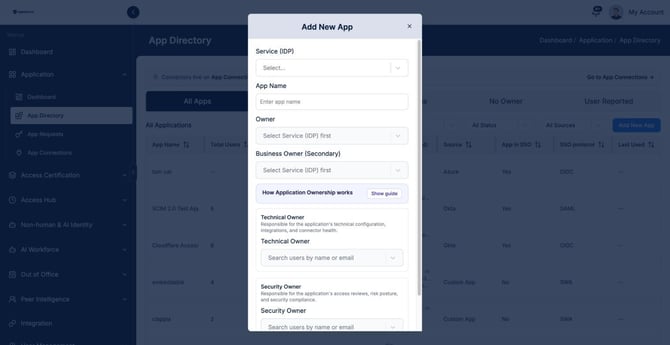
- Service (IDP): pick which IdP the app belongs to, or Custom App if it is not in any.
- App Name.
- Owner: the primary Business Owner. Required.
- Business Owner (Secondary), Technical Owner, and Security Owner: optional.
- Click Save.
Manually added apps show Custom App as their Source.
Duplicates
The same app can be found by more than one source, for example an app registered in Okta that also appears in an OAuth scan. AppGovern matches on app name and identifiers to merge these into a single record. If you see two records for one app, use Resolve Manual on the shadow record and give it the same name as the existing app.
Why an app might not show up
- The IdP sync has not run yet. Check the Integration page for a Completed badge, then wait for the sync interval to pass or trigger a sync from Edit.
- The IdP app lacks permission to read applications. See Connecting Your Identity Provider for the required scopes per provider.
- The app is not in SSO and has not been used recently. Apps outside the IdP are only found by OAuth scan, endpoint detection, or user report.
- It was rejected or deleted earlier. Check the Shadow Apps tab with the status filter set to Rejected.