
Service accounts, bots, API keys, AI assistants, AI agents, and MCP servers all need an owner just like applications do. AppGovern finds these non-human identities (NHI), assigns ownership, scores risk, and puts them through review. This article covers how detection works and how to run the review process.
What counts as a non-human identity
AppGovern classifies identities into account kinds:
- Service Account: a directory account used by a system rather than a person
- Bot: an automation identity, such as an integration user or a scheduled job account
- Managed Device: a device identity with its own credentials
- AI Assistant: a copilot or assistant integrated into a business app
- AI Agent: an autonomous agent with its own identity and permissions
- AI Workflow: an automated workflow (for example, an orchestration tool) that acts with credentials
- MCP Server: a Model Context Protocol server that exposes tools to AI agents
Each is a separate account kind, so detection rules, risk scoring, and ownership rules can be tuned per type.
How detection works
Go to Non-human & AI Identity > Settings. Detection runs on a schedule or on demand, in four steps:
- Compare against HR. Identities in your identity provider that do not match anyone in your HR source become candidates. This needs an HR source set under Data Sources.
- Match your patterns. You write rules that classify identities by name, username, or email, and choose what type each rule assigns.
- Simulate. Preview what your rules would match across the tenant. Nothing changes.
- Sync. Save the matches to the NHI inventory and the review queue.
Discovered AI agents, AI workflows, and MCP servers are added as identities of their own kind.
The Governance tab shows detection health, including when detection last ran and when it runs next.
The NHI inventory
Go to Non-human & AI Identity > NHI.
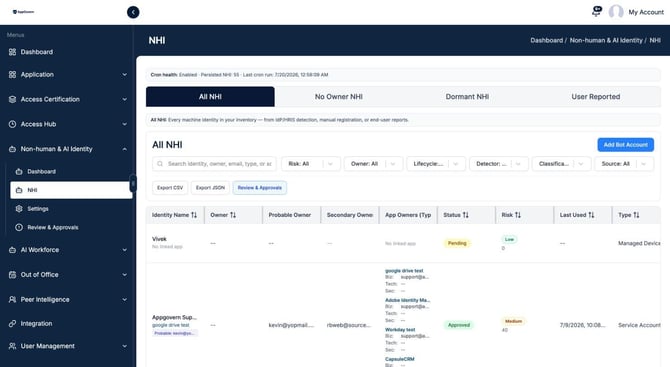
The tabs mirror App Directory: All NHI, No Owner NHI, Dormant NHI, and User Reported. Each row shows the identity, its owner and probable owner, linked apps with their typed owners, status (Pending, Approved), risk level and score, last used date, and type.
Filters cover risk, owner, lifecycle, detector (AI Assistant, AI Agent, AI Workforce), classification, and source. Export CSV and Export JSON produce the inventory for audits.
Use Add Bot Account to register an identity that detection has not found, for example an API key held outside your IdP.
Assigning owners to identities
Every NHI follows the same ownership model as applications: one primary Business Owner, with optional Technical and Security owners and secondary owners. Open the identity, set the owners, and save. The Ownership tab in NHI Settings lets you set rules that auto-suggest owners, for example by the linked application's owner.
Identities with no owner are the first thing to fix. They cannot be certified and they inflate the risk score.
Review and approval
Go to Non-human & AI Identity > Review & Approvals. Newly detected identities arrive as Pending. For each one:
- Approve confirms it is a legitimate non-human identity with the stated owner.
- Override human / bot corrects a misclassification (a human flagged as a bot, or the reverse).
- Reject marks it as not approved for continued operation.
Approved identities move into the certification cycle under Access Certification > AI Agent Certification, where the owner re-confirms them on the same schedule as app certification.
Risk scoring
The Risk & Scoring tab is where you decide what counts as risky for your organization and set the thresholds for Low, Medium, and High. What counts as risky is your policy, not ours.
Lifecycle and automation
- Lifecycle sets dormancy windows and what happens when an identity goes unused.
- Automation lets you act on findings automatically, for example notifying the owner when a new identity is detected or opening a flag when one goes dormant.
- Notifications controls which NHI events send email. The matching templates live under Mail Template (type: NHI manual notification).
Letting users report identities
Under Governance, turn on Allow user to report missing bot identity so employees can submit a bot or service account they know about. Reports appear in the User Reported tab for admin review. Allow app owner to request observer lets an app owner ask for read-only visibility into an identity linked to their app.
Common questions
Detection is finding humans and calling them bots. New hires and people who are not yet in your HR source can be flagged by mistake. Use Override human / bot to correct the record, and make sure an HR source is set under Data Sources.
Why is the NHI count different from the dashboard? The Overview Dashboard counts persisted NHI. Flagged candidates that have not been synced yet are not counted until you run a sync.
Do AI agents need an IdP? No. AI Agent, AI Workflow, and MCP Server detection work without an IdP or HRIS source.