
Ownership is the control that everything else in AppGovern depends on. An app with no verified Business Owner cannot be certified, cannot route access requests, and shows up as risk on every dashboard. This article explains the ownership model and how to assign, reassign, and verify owners.
The three owner types
Every application has up to three owner roles:
| Owner type | Required | Responsible for |
|---|---|---|
| Business Owner | Yes | Business use of the app, access approvals, and lifecycle decisions (renew, retire) |
| Technical Owner | No | Technical configuration, integrations, and connector health |
| Security Owner | No | Access reviews, risk posture, and security compliance |
Each owner type has exactly one primary owner who is accountable, plus any number of secondary owners who can act on the primary's behalf (for example during out-of-office delegation).
Rules that apply:
- The Business Owner is required when an app is created. Technical and Security owners can be added later.
- The same person cannot be both primary and secondary for the same owner type.
- Reassigning the primary Business Owner records the previous owner as the probable owner, so history is kept.
Where ownership shows up
Go to Application > App Directory. The Owner column shows the primary Business Owner, Probable Owner shows AppGovern's suggestion when no owner is confirmed, and Owners (Typed) lists Business, Technical, and Security owners side by side.
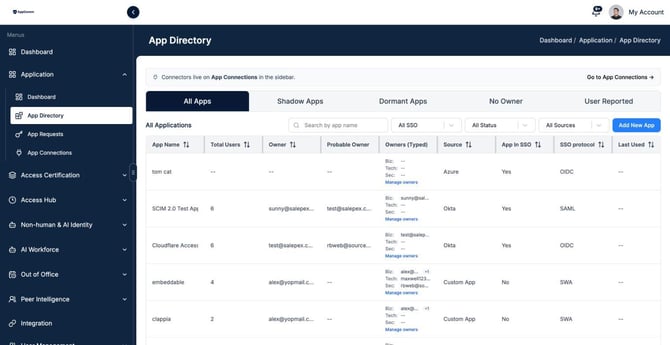
The No Owner tab filters to apps with no Business Owner. On the Overview Dashboard, the Without Owner count is the same number.
Where probable owners come from
When AppGovern discovers an app, it looks for the most likely owner using:
- Identity provider data, such as who administers or is assigned to the app
- HR or organizational data, such as department ownership
- Usage patterns, such as who signs in most or earliest
- Existing governance rules you have configured
- The previous owner, if one was reassigned
The probable owner is a suggestion, not an assignment. Someone with admin rights still has to confirm it.
Assigning owners
- Go to Application > App Directory and open the No Owner tab.
- In the row for the app, click Manage owners.
- In the Manage Owners dialog, search for a user by name or email in each owner section.
- Set the primary Business Owner first. Add a secondary Business Owner, a Technical Owner, and a Security Owner if you know them.
- Click Save Owners.
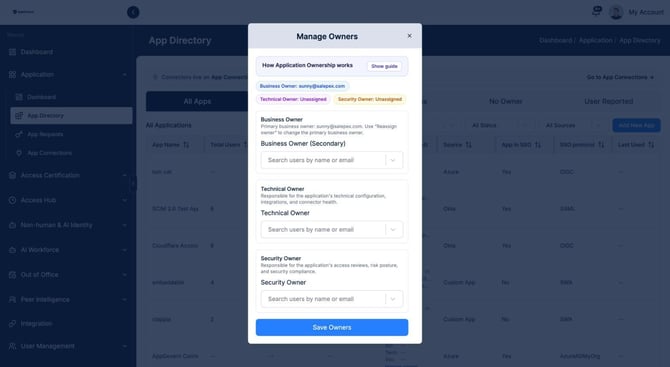
The dialog includes a Show guide link that explains the owner types and assignment rules in the product itself.
Reassigning the primary Business Owner
Use Reassign owner on the app row to change who is primary. Manage Owners is for secondary owners and for the Technical and Security roles. Reassigning records the previous owner as probable owner so the change is traceable.
When an owner says they are not the owner
Owners can respond to a notification with "I'm not the owner." AppGovern sends a reassignment request to the admin, and the app returns to a pending ownership state until someone else is confirmed. There is a mail template for this message under Mail Template (type: I'm Not the Owner, Reassign).
Verifying ownership
Ownership is not a one-time record. AppGovern re-validates it through:
- App certification campaigns. Each cycle, the Business Owner confirms they still own the app and reviews who has access. See Running Your First Access Certification Campaign.
- Out-of-office delegation. When an owner is marked out of office, secondary owners handle approvals and reviews.
- Organizational changes. If auto certification is enabled, a change to the owner's manager, department, or employment status triggers a re-check.
Ownership for non-human identities
Service accounts, bots, API keys, and AI agents have owners too. They are managed under Non-human & AI Identity > NHI, with the same Business, Technical, and Security owner structure. See Governing AI Apps and Non-Human Identities.
Common questions
Can a group or distribution list be an owner? No. Owners are individual people, so accountability is clear. Use secondary owners to share the work.
What happens when an owner leaves the company? Once the IdP sync marks the account inactive, the app appears in the No Owner tab. Reassign as soon as possible so certifications and approvals are not blocked.
Can I bulk-assign owners? Not from the directory today. Use the Source and Status filters on App Directory to narrow the list, then assign one app at a time, starting with the apps that have the most users.