
Policies are the rules your AI agents and MCP servers are measured against. When an asset breaks a rule, AppGovern opens a violation, raises an alert, and tells the right people. Risk scores summarize how much attention each asset needs. Both are set by your policy, not ours.
How the pieces fit
- A policy is a set of rules, scoped to certain asset types.
- When an asset meets a rule's condition, a violation opens against that asset.
- A violation can create a governance alert and notify owners, admins, and others.
- Each asset carries a risk score and risk level (Low, Medium, High, Critical) that you can review and recalculate.
Create a policy
Go to AI Workforce > Policies and click + Create Policy. The wizard has seven steps.
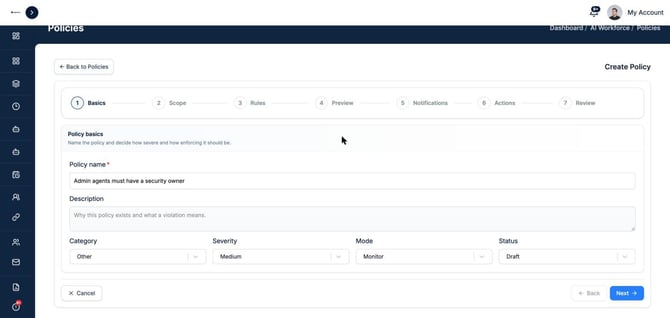
1. Basics. Name the policy in plain terms, for example "Admin agents must have a security owner." Add a description, then set the Category, Severity (Low, Medium, High, or Critical), Mode, and Status. New policies start as a Draft in Monitor mode. Keep new policies in Monitor while you check their results.
2. Scope. Apply the policy to All AI Assets or to Specific Asset Types. Narrow it further with Specific Assets (leave empty to cover every asset of the chosen types) and list any Excluded Assets.
3. Rules. An asset violates the policy when a rule's condition is true. For each rule, give it a name, choose its severity (or inherit the policy's), and build the condition from a Field, an Operator, and a value. Combine conditions with AND, OR, and NOT groups. The fields offered depend on the asset types you chose in Scope.
4. Preview. Run a dry run against your live inventory. Nothing is saved, no violations are created, and nobody is notified. Use this to check the policy catches what you expect and nothing else.
5. Notifications. Decide what happens the first time a violation is detected:
- Create governance alert: the alert stays visible in AppGovern, moves from Active to Acknowledged to Resolved, and resolves itself when the violation is fixed.
- Notify recipients: any of Owner, Security Owner, Admins, Reviewer, and Manager.
Notifications go out only when a violation is newly opened. Repeated evaluations of the same open violation do not send again. Out-of-office delegates are respected.
6. Actions. Optionally have AppGovern Start Certification when a violation opens, so the agent's owner is asked to review it. The action runs once per new violation. It is skipped if the violation is fixed first or if a certification is already open.
7. Review. Check the summary and save. Change the status from Draft when you are ready for the policy to run.
Evaluate a policy
On the Policies list, click Evaluate to run a policy against current inventory. The list shows each policy's open violations, active alerts, mode, version, and when it was last evaluated. Policies are versioned, and each violation records the policy version that found it.
On an agent's Policy tab you can see its overall policy status, whether it has an owner and security owner, its certification, active alerts, the policies that apply to it, and any violations.
Work a violation
Go to AI Workforce > Policy Violations. Filter by status, severity, policy, owner, or asset type. Open a violation to see:
- The policy and version, the asset, its owner and security owner, and when it was detected and resolved
- Why did this happen?: the rule and the condition that was met, with any evidence
- The alert, notifications sent, actions taken, and any certification started
- An activity and audit trail
Fix the cause (for example, assign the missing security owner) and the violation resolves on the next evaluation.
Risk scores
Open an asset's Risk tab to see its risk score, risk level, criticality, and when it was last calculated. Why this risk score lists the factors that contributed, such as a missing owner or no current certification. Recent Changes shows how the score has moved.
- Click Recalculate after you fix an issue to refresh the score.
- Click Edit to adjust criticality for an asset that is more or less important to the business than its score suggests.
Risk levels feed the dashboard's Risk Distribution panel and the Risk Report, and the relationship graph can filter by them.
Starter policies to consider
- Every agent has a business owner.
- Agents with access to production data have a security owner.
- Agents are certified within your review cycle.
- MCP servers that require authentication do not use "None."